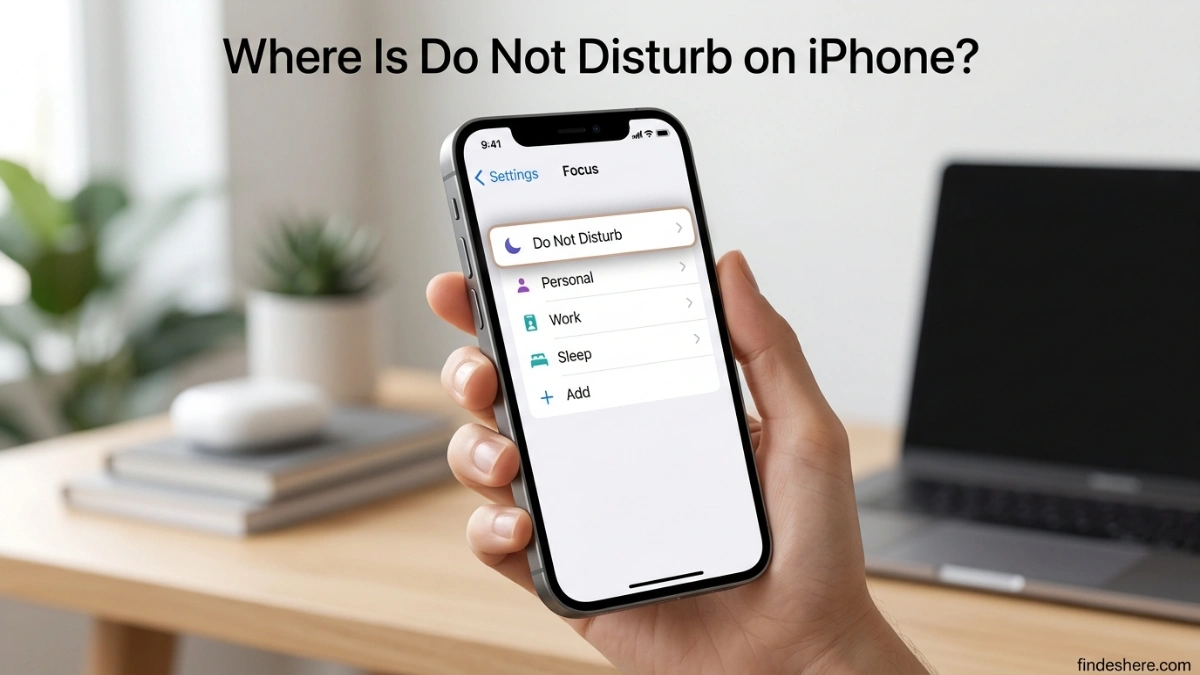
If you’re wondering where Do Not Disturb is on your iPhone, you can find it under Settings → Focus → Do Not Disturb. You can also access it quickly from Control Center by tapping Focus and selecting Do Not Disturb. This feature lets you silence calls, alerts, and notifications without turning off your iPhone or disconnecting from the internet.
If you’re using an iPhone 11, iPhone 13, iPhone 13 Pro Max, iPhone 15, or another recent model, the location is generally the same when running modern iOS. However, the menu can look different on older iOS versions, which is why you may have trouble finding the setting.
Whether you want to turn Do Not Disturb on or off, customize who can contact you, allow specific apps, or schedule quiet periods, the Focus menu gives you control over how your iPhone handles interruptions.
Featured Snippet
Do Not Disturb on iPhone is found in Settings > Focus > Do Not Disturb. You can also open Control Center, tap Focus, and select Do Not Disturb. It is an iPhone feature that silences notifications, calls, and alerts while allowing users to customize exceptions.
Quick Facts About Do Not Disturb on iPhone
| Fact | Details |
|---|---|
| Feature Name | Do Not Disturb |
| Device | iPhone |
| Location | Settings → Focus |
| Available Since | Older iOS versions (redesigned under Focus in newer iOS) |
| Purpose | Silences calls, alerts, and notifications |
| Category | Focus mode feature |
| Developer | Apple |
| Main Uses | Sleep, work, meetings, travel, and quiet time |
| Access Method | Settings app or Control Center |
Where Is Do Not Disturb on iPhone?
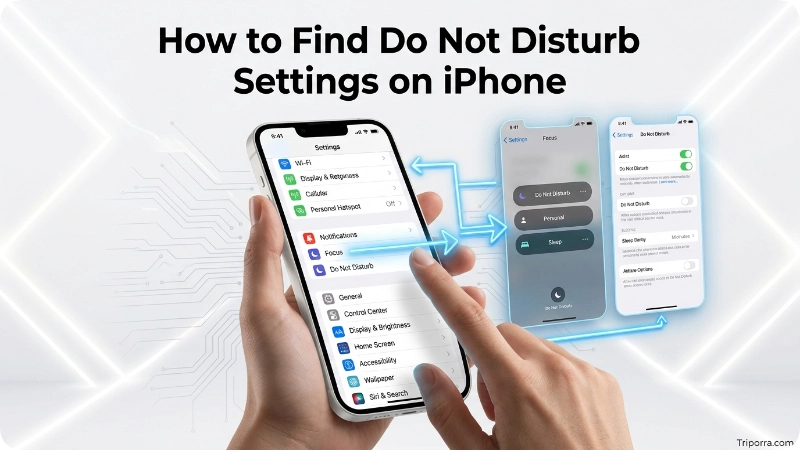
If you are wondering how to find Do Not Disturb on your iPhone, the feature is located inside the Focus section of the Settings app. Apple moved Do Not Disturb into Focus beginning with iOS 15, so it no longer appears as a separate setting on newer iPhones. To access it, open Settings → Focus → Do Not Disturb. You can also open Control Center, tap Focus, and select Do Not Disturb.
To find it manually:
- Open the Settings app.
- Scroll down and tap Focus.
- Tap Do Not Disturb.
- Adjust your preferences, such as allowed people, apps, and schedules.
You can also access it faster:
- Swipe down from the top-right corner of your screen to open Control Center.
- Tap the Focus button.
- Select Do Not Disturb.
Travellers often overlook this because iPhones purchased at different times may run different iOS versions. Older guides may show Do Not Disturb as a separate setting, while newer iPhones place it under Focus.
What most guides miss is that Do Not Disturb is not just an “off switch” anymore. It can automatically activate based on your location, time, or app usage.
How to Turn On Do Not Disturb on iPhone
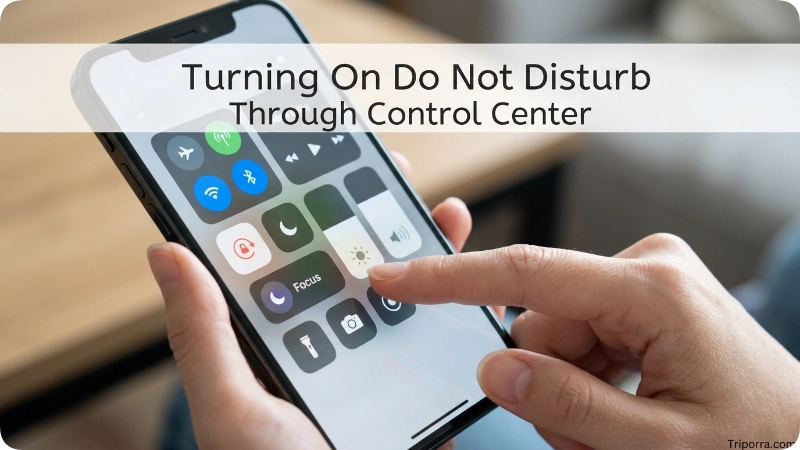
There are several ways to enable Do Not Disturb depending on how quickly you want to activate it.
Method 1: Using Control Center
This is the fastest option:
- Swipe down from the upper-right corner.
- Tap Focus.
- Choose Do Not Disturb.
A small moon icon may appear near the top of your screen when it is active.
Method 2: Through Settings
Follow these steps:
- Open Settings.
- Select Focus.
- Choose Do Not Disturb.
- Turn on the feature.
From here, you can create rules instead of manually switching it on every time.
Method 3: Using Siri
You can simply say:
“Hey Siri, turn on Do Not Disturb.”
Siri can also activate it for a specific period, such as one hour or until you leave a location.
How to Turn Off Do Not Disturb on iPhone
Many users search for how to turn off Do Not Disturb after accidentally enabling it. Fortunately, Apple makes it easy to disable the feature in just a few seconds.
Method 1: Turn Off Through Control Center
This is the quickest method.
- Swipe down from the upper-right corner of the screen.
- Tap the Focus button.
- Tap Do Not Disturb to turn it off.
Once disabled, the moon icon disappears from the status bar, and calls, alerts, and notifications return to normal.
Method 2: Turn Off in Settings
- Open Settings.
- Tap Focus.
- Select Do Not Disturb.
- Turn the switch off.
Method 3: Using Siri
Simply say:
“Hey Siri, turn off Do Not Disturb.”
If Do Not Disturb turns back on automatically, check whether you have enabled a schedule or automation in the Focus settings.
How to Customize Do Not Disturb Settings
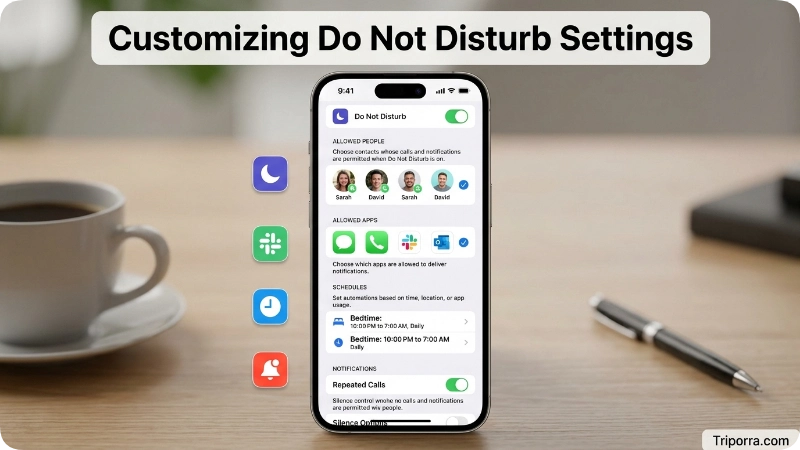
The main benefit of Do Not Disturb is customization. You do not have to block every notification.
Inside the Do Not Disturb settings, you can control:
Allowed People
You can choose which contacts can still reach you.
For example:
- Family members
- Emergency contacts
- Important coworkers
This is useful because urgent calls can still come through while unnecessary alerts stay silent.
Allowed Apps
You can select apps that are allowed to send notifications during Do Not Disturb.
Examples include:
- Work messaging apps
- Calendar reminders
- Security apps
Lock Screen Options
You can decide whether notifications appear on your lock screen while the mode is active.
Home Screen Changes
iPhone allows you to hide certain Home Screen pages during a Focus mode. This can reduce distractions when working or sleeping.
Do Not Disturb vs Silent Mode on iPhone
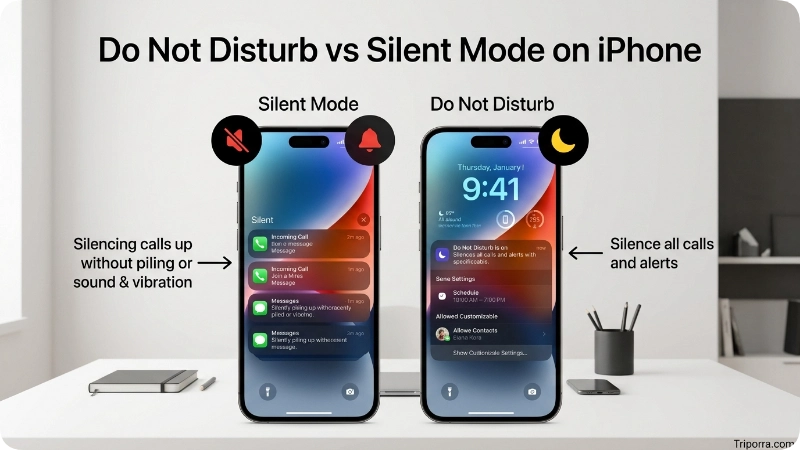
Many people confuse Do Not Disturb with Silent Mode, but they work differently.
Silent Mode only turns off sounds. Notifications still arrive normally, and your screen may light up.
Do Not Disturb controls when and how notifications appear. It can:
- Silence calls
- Block notification sounds
- Hide alerts
- Allow selected contacts
- Follow a schedule
A common mistake is using Silent Mode before sleeping and expecting complete silence. Notifications may still appear unless Do Not Disturb or another Focus mode is enabled.
Why Is Do Not Disturb on iPhone Useful?
The strongest reason people use Do Not Disturb is to control interruptions without completely disconnecting from their phone.
Better Sleep
Many people activate Do Not Disturb at night to prevent messages and app alerts from waking them.
The Sleep Focus mode works closely with Do Not Disturb settings and can create a quiet nighttime routine.
Fewer Work Distractions
During meetings or focused work sessions, Do Not Disturb helps reduce unnecessary interruptions.
You can still allow important work apps or specific contacts.
More Control During Travel
Travellers often overlook Focus settings while moving between time zones. A scheduled Do Not Disturb period can prevent notifications during flights, rest periods, or unfamiliar schedules.
History of Do Not Disturb on iPhone
Apple introduced Do Not Disturb as a way to manage notifications without turning off the phone completely. It became popular because smartphones were becoming a constant source of interruptions.
Later, Apple expanded the idea into Focus modes. Instead of having one simple silence feature, users could create different notification profiles for different situations.
The change meant Do Not Disturb became one part of a larger system. Today, it works together with features such as Sleep Focus, Work Focus, and custom Focus settings.
The modern design reflects how people use phones differently throughout the day. Someone may want complete silence during sleep but allow work messages during office hours.
Where Is Do Not Disturb on iPhone 13, iPhone 15, and Other Models?
Many users think Do Not Disturb appears in a different location depending on the iPhone model. However, the location depends on the iOS version rather than the device itself.
If your iPhone runs iOS 15 or later, open:
Settings → Focus → Do Not Disturb
You will find the feature in the same place on:
- iPhone 15
- iPhone 15 Plus
- iPhone 15 Pro
- iPhone 15 Pro Max
- iPhone 14 series
- iPhone 13
- iPhone 13 Pro
- iPhone 13 Pro Max
- iPhone 12 series
- iPhone 11 series
If you use an older version of iOS, Do Not Disturb may appear directly in the Settings app instead of inside Focus.
Common Problems With Do Not Disturb on iPhone
Sometimes users turn on Do Not Disturb but still receive notifications. This usually happens because of customized settings.
Problem 1: Important Contacts Are Allowed
If certain people are added under allowed contacts, their calls and messages may still appear.
Problem 2: Apps Have Permission
Some apps may still send alerts if they are listed as allowed applications.
Problem 3: Focus Sync Is Enabled
If you use multiple Apple devices, Focus settings can sync across devices. Turning on Do Not Disturb on an iPhone may also affect an iPad or Mac.
Problem 4: Older Instructions Do Not Match
Many online tutorials show older iOS menus. Apple has changed the location of this feature, which creates confusion.
Why Can’t I Find the Do Not Disturb Icon on My iPhone?
If you cannot find the Do Not Disturb icon, the feature has probably not disappeared. Apple replaced the separate Do Not Disturb button with the Focus menu in newer versions of iOS.
To find it again:
- Open Settings.
- Tap Focus.
- Select Do Not Disturb.
You can also:
- Open Control Center.
- Tap Focus.
- Choose Do Not Disturb.
If the option still does not appear, restart your iPhone and make sure it is running a supported version of iOS.
How to Schedule Do Not Disturb on iPhone
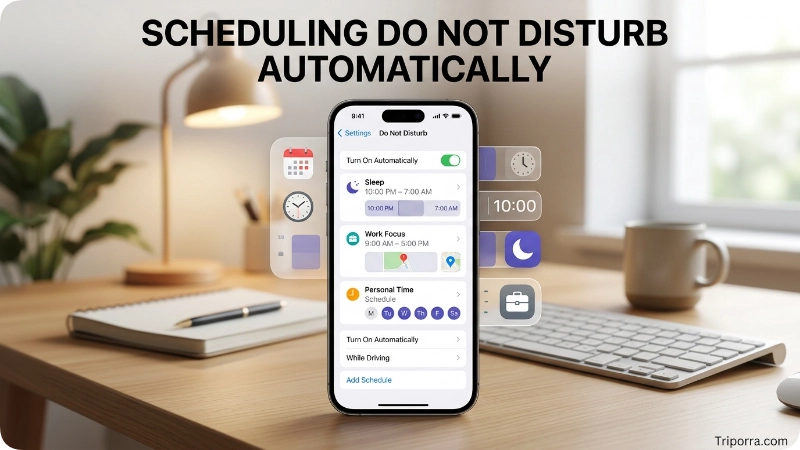
You can automate Do Not Disturb so you do not need to turn it on manually.
To create a schedule:
- Open Settings.
- Tap Focus.
- Select Do Not Disturb.
- Choose Add Schedule.
- Select a time, location, or app.
Examples:
- Every night from 11 PM to 7 AM
- During office hours
- When arriving at a workplace
- While opening a specific app
Scheduling is one of the most useful features because it allows your iPhone to manage distractions automatically.
Do Not Disturb on Different iPhone Models
The location of the feature is similar across recent iPhone models because it depends more on the iOS version than the phone model.
You can find it on:
- iPhone 15 series
- iPhone 14 series
- iPhone 13 series
- iPhone 12 series
- Older iPhone models running supported iOS versions
The exact appearance may change slightly after software updates, but Focus remains the main location.
Common Misconceptions About Do Not Disturb
“Do Not Disturb turns off the internet”
This is incorrect. Your iPhone remains connected to Wi-Fi and mobile data.
“Nobody can call me when it is enabled”
Not always. Allowed contacts, repeated calls, and emergency settings may still allow calls.
“Silent Mode and Do Not Disturb are the same”
They are different. Silent Mode affects sound, while Do Not Disturb manages notifications and interruptions.
“The feature disappeared from my iPhone”
Usually, it has only moved under Focus settings.
Related iPhone Features You Should Know
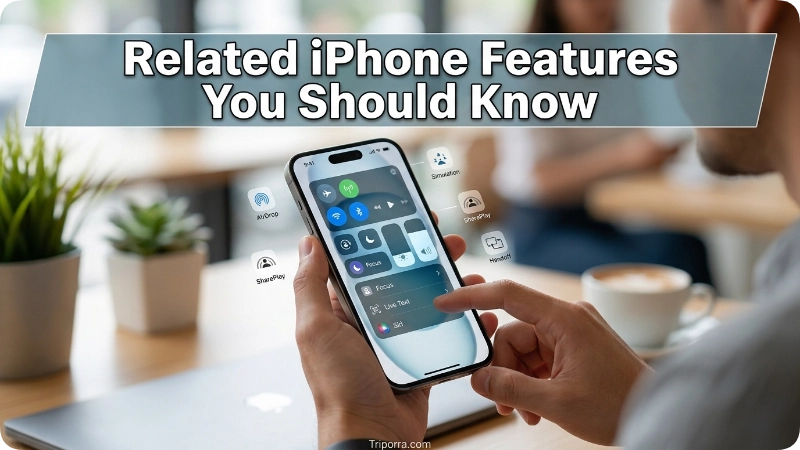
Sleep Focus
Sleep Focus is designed for nighttime use. It can reduce notifications and work with your sleep schedule.
Personal Focus
This mode lets you create quiet periods during personal time.
Work Focus
Work Focus can limit distractions while allowing professional apps and contacts.
Screen Time
Screen Time helps monitor app usage and create limits for distracting applications.
What Else Do People Want to Know?
Do Not Disturb does not require a separate download or subscription. It is included with iOS and available through normal system settings.
The feature works best when customized. Many users only turn it on and off, but the real benefit comes from setting schedules and exceptions.
If you share an Apple ID across devices, check your Focus settings carefully because changes may apply to other Apple products. This is a common reason users think the feature is behaving unexpectedly.
For privacy, Do Not Disturb does not block internet activity or stop apps from running. It mainly controls how notifications reach you.
FAQs
Where is Do Not Disturb located on the latest iPhone?
Do Not Disturb is located inside the Focus menu. Open Settings, tap Focus, and select Do Not Disturb.
Why can’t I find Do Not Disturb on my iPhone?
Apple moved it under Focus settings. Older versions of iOS displayed it differently.
Does Do Not Disturb block all calls?
No. Calls can still come through from allowed contacts or based on your chosen settings.
Does Do Not Disturb save battery?
It may slightly reduce screen activity from fewer notifications, but it is not a battery-saving feature.
Can I set Do Not Disturb automatically?
Yes. You can schedule it by time, location, or app activity.
Will alarms work during Do Not Disturb?
Yes. iPhone alarms normally continue to work while Do Not Disturb is active.
Can I use Do Not Disturb while driving?
Yes. Apple provides Driving Focus, which is designed specifically for reducing distractions while driving.
Can someone know I have Do Not Disturb turned on?
Some messaging apps and Apple features may show that notifications are silenced, depending on your sharing settings.
Is Do Not Disturb available on older iPhones?
Yes, if the device supports a compatible iOS version.
How do I turn off Do Not Disturb on my iPhone?
Open Control Center, tap Focus, and then tap Do Not Disturb to disable it. You can also turn it off by opening Settings → Focus → Do Not Disturb.
Where is Do Not Disturb on iPhone 13?
On the iPhone 13, you can find Do Not Disturb by opening Settings → Focus → Do Not Disturb. It is also available from Control Center under the Focus menu.
Where is Do Not Disturb on iPhone 15?
On the iPhone 15, Do Not Disturb is located in Settings → Focus → Do Not Disturb. Apple keeps this location consistent across recent iPhone models running modern versions of iOS.
How do I quickly turn off Do Not Disturb?
Open Control Center, tap Focus, and select Do Not Disturb to disable it.
Closing
Finding Do Not Disturb on iPhone is simple once you know that Apple now includes it within the Focus settings. Whether you want to reduce distractions during work, enjoy uninterrupted sleep, travel without constant notifications, or create a quieter daily routine, this built-in feature gives you complete control over how and when your iPhone alerts you.
Beyond simply turning it on or off, you can customize allowed contacts, choose which apps can notify you, create automatic schedules, and sync your preferences across your Apple devices. If you ever cannot find Do Not Disturb, remember that the feature is located in Settings → Focus → Do Not Disturb on modern versions of iOS. By taking a few minutes to personalize its settings, you can make your iPhone work around your lifestyle instead of interrupting it.

Silas Vance is a geography enthusiast, travel researcher, and location-focused content writer dedicated to helping readers better understand the world around them on triporra.com. He specializes in creating informative guides about cities, countries, islands, landmarks, universities, and other notable destinations. His work combines geographic accuracy, historical context, and practical insights to answer location-based questions in a simple and engaging way.